


YouTube finally gives you a way to pause Shorts, here’s how to turn it off
YouTube’s new option to pause Shorts may look like a long-awaited fix for endless scrolling, but it is really a smarter extension of its time management tools. While it can limit distractions, the feature still leaves room for users to override it, making self-control just as important.

YouTube has quietly introduced a new setting that finally gives users a way to step back from Shorts, the platform’s endlessly scrolling short video feed.
At first glance, it feels like a long-overdue feature, especially for those tired of doomscrolling. But look closer, and it becomes clear that this is less about removing Shorts entirely and more about helping users manage how much time they spend on them.
The update builds on an existing “Shorts feed limit” tool, which previously allowed users to cap their viewing time to a minimum of 15 minutes. Now, that limit can be set to zero, effectively stopping Shorts from appearing in the app. Once enabled, the Shorts tab no longer shows videos, and users are greeted with a prompt saying they have reached their limit.
 More from Tech
It is a subtle shift, but one that signals YouTube’s growing focus on digital wellbeing rather than outright feature removal.
But, here is a catch
Before we go on to the how part, let’s dig a little deeper. We tried to pause the Shorts feature and found two key things.
First, this is essentially an extension of time limit tools that already exist on most smartphones. Just like you can set a daily usage cap for apps, this feature allows you to define how long you want to spend watching Shorts. In that sense, it is not a complete shutdown, but a behavioural nudge.
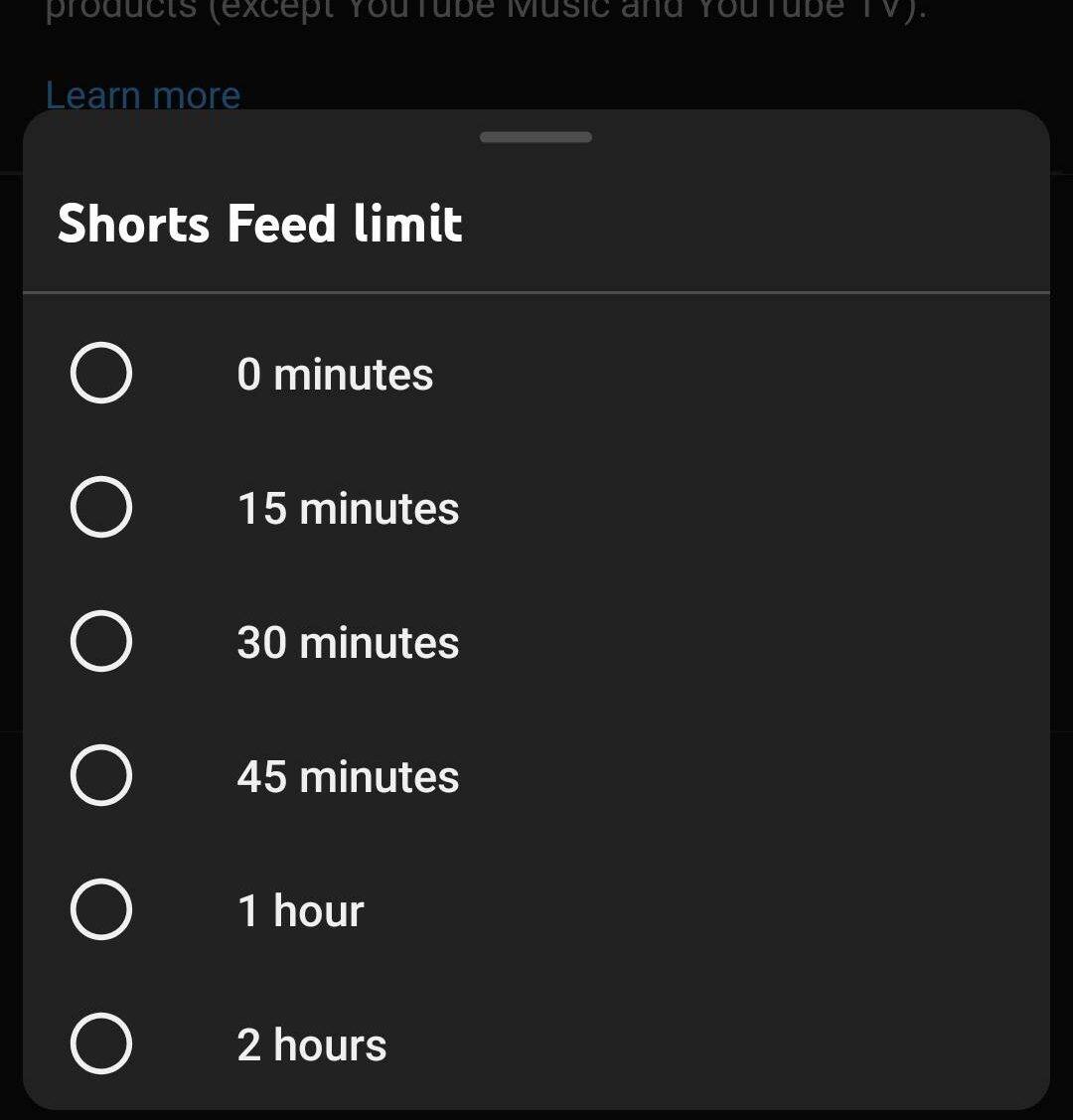
Notably, YouTube already offers similar features such as reminders to take a break or prompts about bedtime. However, the Shorts setting feels more targeted. It directly addresses one of the most addictive parts of the platform by giving users a way to limit, or nearly eliminate, endless scrolling.
Second, it is not a strict block for everyone. When you tap on Shorts after hitting the limit, a prompt appears informing you that your time is up. Just below this message is an option to “Ignore for today”. With a single tap, you can dismiss the restriction and continue watching.
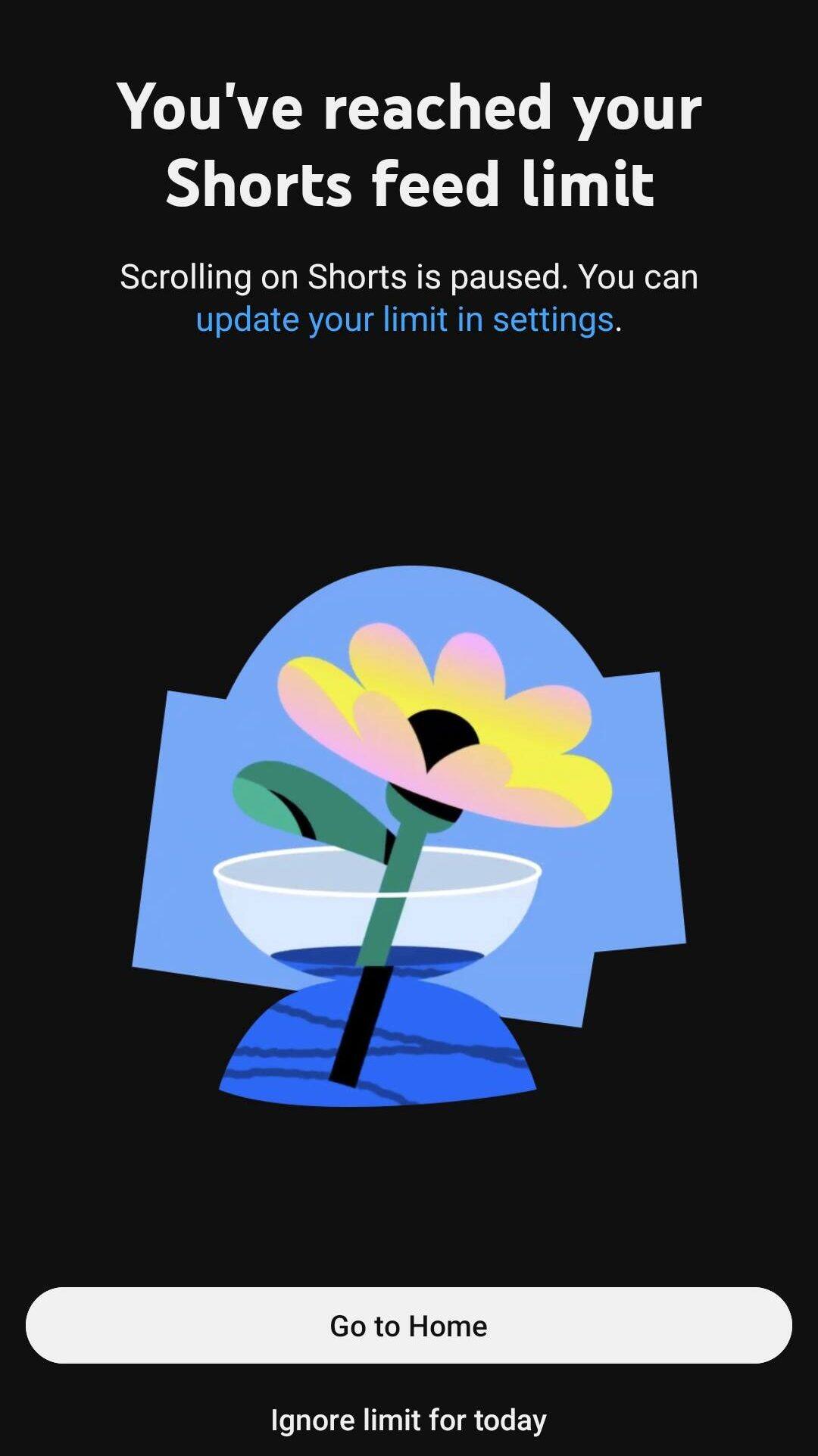
This means that for most users, the feature works more as a gentle reminder rather than a hard stop.
However, there is one exception. For teen accounts managed through Google Family Link, the limit cannot be bypassed. If parents set the Shorts timer to zero, it effectively disables access to Shorts altogether.
How to turn off YouTube Shorts on app?
If you want to try the feature for yourself, here’s how you can enable it:
- Open the YouTube app on your smartphone or supported device
- Tap on the “You” tab at the bottom right corner
- Go to Settings and select the Time management dashboard
- Tap on “Shorts feed limit”
- Set the limit to zero if the option is available
Once activated, you will see a notification whenever you try to access Shorts, indicating that you have reached your limit.
While it may not completely eliminate the temptation, the feature does offer a practical way to take back some control over your viewing habits.
Unnati is a tech journalist with almost half a decade of experience. She has a keen interest to cull out unique story angle. She reviews the latest consumer and lifestyle gadgets, along with covering pop culture and social media news. When away from the keyboard, you might find her reading a fiction, at the gym or drinking coffee.
Tags

OpenAI launches Presence to bring AI agents into customer support and enterprise workflows
Samsung Galaxy Fold 8 Ultra, Fold 8, Flip 8 launched: Here is how much it costs in India with discounts
Florida pastor sues OpenAI, says ChatGPT's medical advice delayed emergency treatment: Report
US accuses China's Moonshot AI of using Anthropic's Fable to build K3 model
Apple's biggest Mac refresh in years could bring 11 new models: Report