


Steps to enable 'black-and-white mode' of iPhone 14 Pro’s always-on display
However, the latest models of Apple are completely different, as they flaunt the display that is identical to the lock screen with the same wallpaper and widgets, but in a diluted manner.

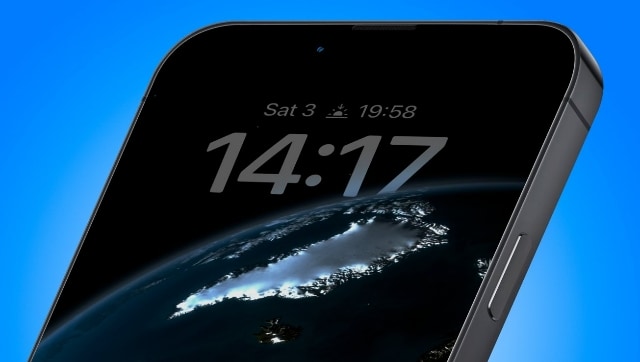
Although the feature is self-explanatory, it doesn’t work like most of the android smartphones out there. Usually, in android phones, the always-on-display feature shows a clock centered around different themes that are mostly surrounded by black pixels.However, the latest models of Apple are completely different, as they flaunt the display that is identical to the lock screen with the same wallpaper and widgets but in a diluted manner. With that being said, it surely can be a distraction at the time. Therefore, if you aren’t a very big fan of the typical style of Always-on Display mode then there is a hidden trick, which will make you go gaga over it. Wondering what? Well, how would you react if we tell you that there is a hidden button to switch the iPhone 14 Pro's Always-on Display feature into a black-and-white mode? Yes, you read that correctly.According to 9 to 5 Mac, you can undo this dimmed display screen with the features available under Focus Mode. Interesting right? Let’s take a look at how to attain a black and white Always-on lock screen on the latest iPhone 14 Pro and iPhone 14 Pro Max.Steps for black-and-white always-on lock screen on iPhone 14 ProStep 1: Firstly you need to go to the Settings section on your iPhone, to enable the black and white always-on lock screen.Step 2: Once you have opened the setting section, tap on the Focus and select a focus mode.Step 3: After this, go to 'Options' and 'Enable Dim Lock Screen'.Step 4: Following the activation of the focus mode, the process will activate the Dim Lock Screen setting.As a result, this will transform your iPhone 14 Pro or iPhone 14 Pro Max display into a simple black-and-white mode.

China’s gaming crackdown causes top 3 companies $80 bn market value loss, Tencent alone sheds $50 bn
What is Lensa AI and how to use the app to generate AI avatars?
What is Bluebugging and how do hackers use it? Learn how to secure your devices
WhatsApp to roll out ‘Message Yourself’ feature for Android and iOS users; check how you can access it
Astronomy watch face on Apple Watch enables exciting view of Solar System; check features here