
Advertisement


Sections
How to use Google Chrome's built-in screenshot tool; Check step-by-step process
Google Chrome has a built-in screenshot tool that works way better than what Windows has to offer. Here’s how one can activate it and use the in-built tool to take screenshots in Chrome.

Google Chrome has been the most popular browser for several years now, and it offers tons of features that make it easier for users to browse the internet. However, the browser lacks a few features, but the company has now introduced support for one of them — built-in screenshot tool.![Google-Chrome-Screenshot-Editor (1)]()
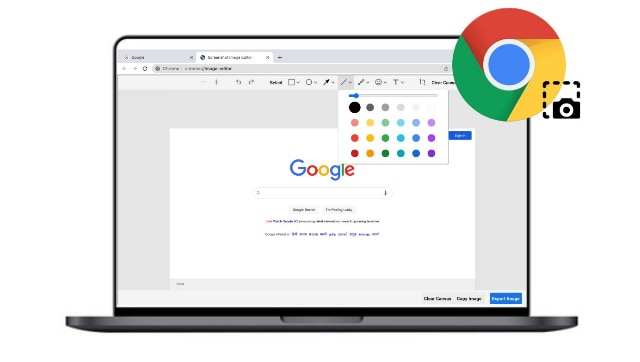
The Chrome web browser now comes with a built-in screenshot tool that enables users to take a screenshot of any webpage without the need to install any third-party extensions. It appears as a part of the “Share” menu in the address bar and also supports a few tools for annotating screenshots.How to enable built-in screenshot tool in Google Chrome
- Open the Google Chrome browser on your Windows computer or laptop
- Go to the flags settings page or simply enter this - chrome://flags - in the address search bar.
- Here, find the “Desktop screenshots” option while using the search bar.
- Now, use the drop-down menu right next to the “Desktop Screenshots” option and then select “Desktop Screenshots Edit Mode”.
- You will need to select the “Enabled” option.
- Once you make the changes, the Chrome browser will ask to relaunch the page. Tap on the “Relaunch” button.
- To capture a screenshot in Google Chrome, you will need to click on the “Share this page” button, available right next to the webpage’s URL
- Now, select the “Screenshot” option from the drop-down menu
- Now, select the area of the screen that you want to capture and this will automatically capture the screenshot which will be copied to the clipboard.
- If you want to save the screenshot on your device, then click the Download button, which will be saved as a PNG image.
- In case you want to edit the screenshot, you have that option as well. For that, click the edit button to open a new “Screen Image Editor” tab. Edit as per your liking and then save.
First Published:Aug 29, 2022, 14:37:57 IST
Advertisement
Advertisement

Why AI notetakers are raising serious privacy and security concerns
AI notetakers promise effortless meeting summaries, but experts warn they could expose confidential conversations, corporate secrets and personal voiceprints. As businesses increasingly adopt AI-powered meeting assistants, questions over data storage, privacy, consent and legal risks are becoming impossible to ignore
5 min read
China's low-cost AI models are changing the global AI race. Here's why Silicon Valley is worried
As Chinese firms continue to improve performance while keeping prices low, the AI race is no longer just about building the smartest model—it is increasingly becoming a battle over who can deliver the best value
2 min read
China's Kimi K3 challenges US AI leaders with frontier-level performance at lower cost
Chinese artificial intelligence startup Moonshot AI has unveiled its latest open-weight AI model, Kimi K3, with early results suggesting it could compete with some of the world's most advanced AI systems developed by leading US companies
2 min read
How did Instagram run ads promoting child abuse in India?
India has issued a notice to Meta after an investigation alleged that Instagram displayed paid advertisements promoting child sexual abuse material. MeitY ordered Meta to remove such Instagram ads and explain within seven days how they were approved
8 min read
Why has India halted WhatsApp’s username feature before launch?
India has halted WhatsApp’s planned username feature, citing concerns about cybercrime, impersonation, and law enforcement challenges. As Meta races to address security concerns, here’s why MeitY has paused the rollout, what the feature does, and how it could influence privacy and online safety in India
3 min read
Advertisement
Advertisement