


Casting, streaming over Bluetooth and more: Six tips to get most out of your Amazon Fire TV Stick
Here are Amazon Fire TV Stick's hidden features that let will enhance your streaming experience.

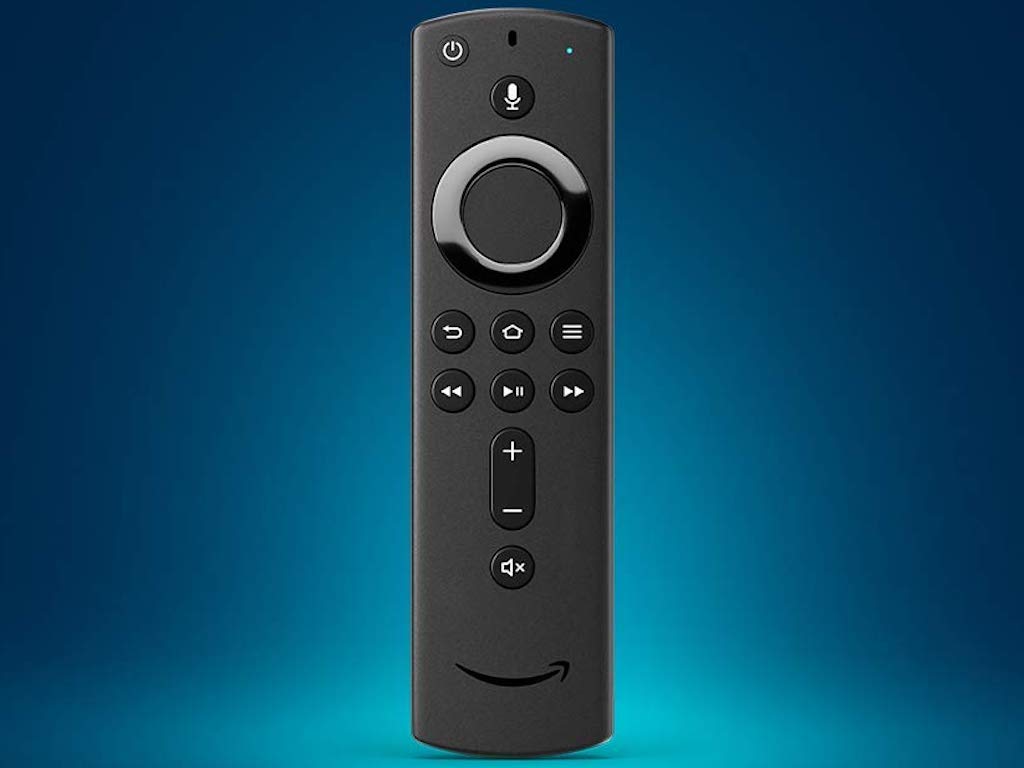
Amazon Fire Tv Stick 4K[/caption]
Display settings
Most users simply plug in the Fire TV Stick, switch it on and start using it. While this does work fine in several cases, some videos may appear slightly out of scale or zoomed in. That’s because the display hasn’t been optimally calibrated. Fire TV gives you the option to do just that.For that, head to Settings > Display & Sounds > Display > Calibrate Display. You will see four arrowheads pointing towards the four edges of your screen. If each of the arrowheads just touches the respective edge, your display is perfectly calibrated. If not, use the up and down buttons of the direction pad on the Fire TV remote to adjust them till they do. Once you are done, click on Accept to save the settings and your display is now calibrated.If you own a Fire TV Stick 4K, there are few more picture settings you can tweak, starting with the Dynamic Range. Under Display > Dynamic Range Settings, change HDR mode to Adaptive instead of Always HDR. Not all content you stream on the device supports HDR, and the Always HDR setting makes non-HDR content look unusually bright and with inaccurate colours. Adaptive mode takes care of such issues and if you happen to play HDR content, it switches it on automatically. So you get the best of both worlds. Similarly, set the Colour Depth to that of your TV panel. You will find that information on your TV manufacturer’s website. If you don’t or aren’t sure, set it to 8-bit.
Audio settings
There aren’t too many sound options to play with here but there a couple of useful ones hidden deep inside. If you feel that the audio output of some streaming services is much louder than others, you can normalise it here. Go to Settings > Display & Sounds > Audio > Advanced Audio. There you will find the Volume Leveller option. Switch it on. Similarly, if you feel that the dialogues/vocals aren’t clearly audible, turn on Dialogue Enhancer under Advanced Audio. It certainly helps to an extent.
 More from News Analysis
Stream audio over Bluetooth
While we are on the topic on sound, did you know you can stream audio from your Fire TV Stick wirelessly to a compatible Bluetooth speaker or headphones? This is how you can do it. Go to Settings > Remotes & Bluetooth Devices > Other Bluetooth Devices > Add Bluetooth Devices. Make sure the device you are looking to add is in pairing mode and placed close to the Fire TV Stick. Once you see it in the list, add the device. After the pairing is successful, you can hear the audio on the paired device. This is a great option if you like to watch things on a big screen at high volume without disturbing others around you.[caption id="attachment_7235501" align="alignnone" width="1280"]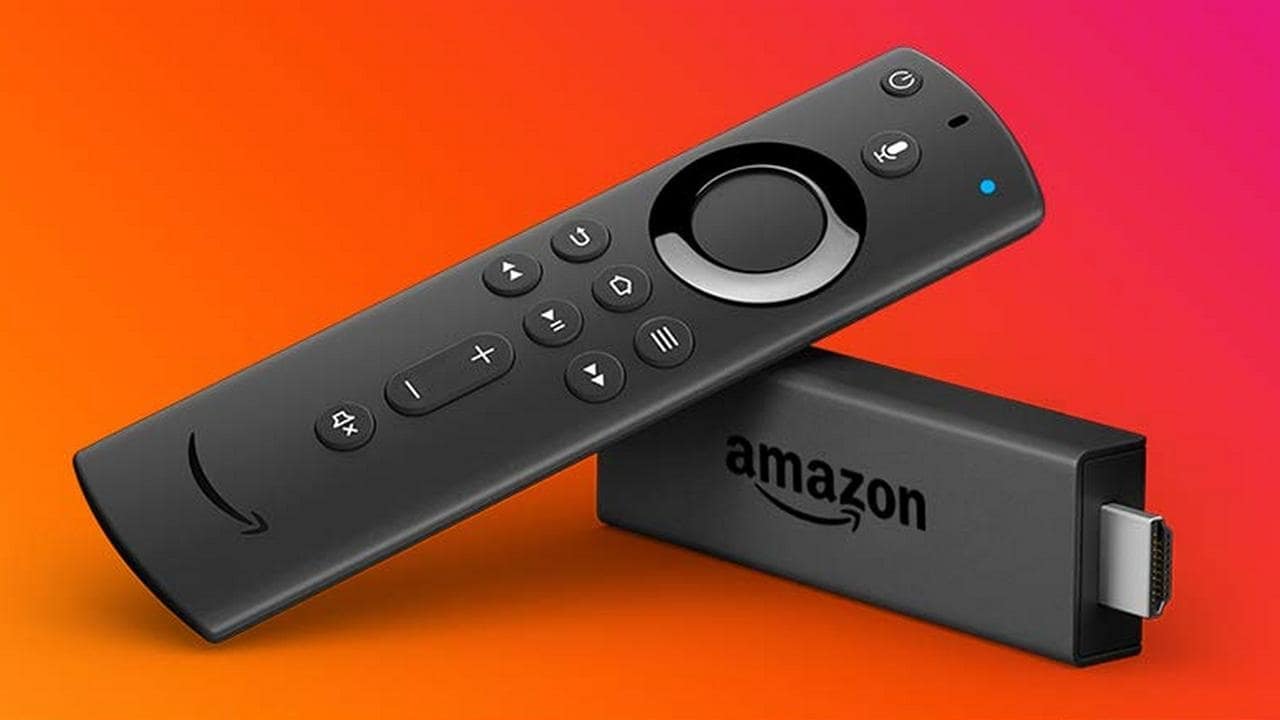
Amazon Fire TV Stick.[/caption]In case you wish to unpair a device, simply switch it off or select it in the list again and press the Options key on the remote (the one with three horizontal lines). You can always add it back later.
Casting to Fire TV Stick
You may be aware that one can mirror their smartphone screen to the TV using Fire TV, but did you know that you can cast stuff to it too, as you do on Chromecast? Casting, though, is limited to YouTube content only. Speaking of which, the cold war between Google and Amazon ended recently, and you now have a proper YouTube app for the Fire TV Stick. If you haven’t installed it already, now would be a good time.Any video that you watch on YouTube app on your smartphone can be cast to the Fire TV Stick by hitting the cast button in the app. Once you hit the button, you will see your Fire TV Stick in the list of devices you can cast the content too. Select it and you are good to go. Make sure that your phone and Fire TV are on the same Wi-Fi network for it to work.
Fire TV Remote app
While the Fire TV Stick is a wonderful device, typing on it with its remote can be stress-inducing, and Alexa can’t find everything for you. Amazon recognises that and provides a simple solution. All you need to do is download the Amazon Fire TV app from the Play Store and use it as a remote. Not just that, it has a full-fledged keyboard as on any smartphone that is so much better to type on when searching for something. It also provides you with playback controls and more features that you can explore on your own.[caption id="attachment_7235531" align="alignnone" width="1280"]
If you are on a limited data internet plan, the Fire TV Stick content in its full glory can deplete your data reserves faster than you can imagine. Image: Pixabay[/caption]Speaking of remote access, if you have an Amazon Echo device in the house, pair it with the Fire TV Stick through the Alexa app. This allows you to bring up Alexa and issue voice commands to her without having to press the Mic button on the Fire TV remote. Try it out.
Save your Data cost
If you are on a limited data internet plan, the Fire TV Stick content in its full glory can deplete your data reserves faster than you can imagine. To prevent that, you need to turn Data Monitoring on and turn down the video quality a bit. You will find that option under Settings > Preferences > Data Monitoring. After you switch it on, go to Set Video Quality and choose Better. It consumes significantly less amount of data without making the content unwatchable. In short, it’s an excellent trade-off between quality and data consumption.That’s it for now. Hope these tips help you improve your experience with the Amazon Fire TV stick further. If there are some more tips and tricks that you would like to share, feel free to use the comments section below. We would love to hear from you.

Why AI notetakers are raising serious privacy and security concerns
China's low-cost AI models are changing the global AI race. Here's why Silicon Valley is worried
China's Kimi K3 challenges US AI leaders with frontier-level performance at lower cost
How did Instagram run ads promoting child abuse in India?
Why has India halted WhatsApp’s username feature before launch?